Featured Post

Beolover SyncDrive: DC Platter Motor Replacement for Beogram 4002 and 4004 (Type 551x and 552x)

Late Beogram 4002 and the 4004 (Types 551x and 552x), which have DC platter motors instead of the earlier synchronous AC motors usually suff...

Tuesday, April 24, 2018

Beomaster 8000: Replacing The Microcomputer 2MHz Oscillator Crystals

A while back Beolover encountered a fault where a 2MHz Oscillator Crystal failed in his Beomaster 8000 receiver. Needless to say the Beomaster did not operate properly. You can read about the failure in his previous blog post here.

Since that time we have been replacing these oscillators on our Beomaster 8000 restorations as a preventative measure. The Beomaster 8000 is rather expensive to ship so it is a good idea to guard against faults we have seen before.

As Beolover warns in the original post, you have to take some care and precautions when changing the two oscillator crystals (one for each microcomputer IC). The microcomputer devices can no longer be sourced if a replacement is needed except to raid another Beomaster 8000 unit.

To get started I removed the microcomputer board from the Beomaster again and removed the original oscillator devices.


This picture shows the precaution I use where I short the oscillator pins when the device is desoldered for removal. I also keep the oscillator leads shorted during installation. Shorting the oscillator leads will insure no electrical discharge from the devices cause (fatal) damage to the microcomputer chips.

ADDITIONAL NOTE: Along with shorting the two oscillator device leads together during the removal and installation - the leads should also be connected to the the board ground....which should be connected to the ground of your ESD protective band. Anytime you are handling integrated circuits on these boards you should wear ESD protective bands and properly ground them.


Along with the X1 and X2 oscillator devices capacitors C17, C18, C95 and C97 capacitors must be changed. The capacitor values are determined by the oscillator device.  In this case I used the same oscillator that Beolover originally used (21M6819). That oscillator calls for two 18pF capacitors.

Here are the new parts installed on the microcomputer board. I used a little Aleene's Tacky Glue to secure the oscillators to the board.


After re-installing the microcomputer board back in the Beomaster I started up the receiver and I am now listening to the FM tuner again. Another task off the list.


The display board is next on the list.

Beomaster 8000: Power Test Update

The +15V regulator is now functioning correctly on this Beomaster.


The next thing to do is recheck the no-load current and the DC offset adjustments again.


I did both channels and no problems with those adjustments. I didn't expect any since I had already tested these output amplifiers by themselves earlier.

I usually do a first listening test using the Beomaster TP2 source once I am confident the amplifiers are ready. This unit fired up and played just as beautifully as I expected.


I performed the same check on TP1 and it played great too.

After an initial scare where the FM tuner wasn't producing any sound, it turned out the problem was only a faulty connector not making contact. I fixed that and the FM tuner also works great. The signal meter and tuning display indicate the FM board is picking up stations.


A good second test overall. The power supply tests all pass now and I was able to successfully recheck the output amplifier settings. Best of all I got to hear a nice preview of this Beomaster playing music again.

The next steps are the obvious display segment repair and I will do the preventative update of the microcomputer oscillators.


Monday, April 23, 2018

Beogram 4002 (5513): DC Motor Restoration

After rebuilding the electronics of the Beogram 4002 (5513) that I am working on right now it was time to restore the DC motor. They all need their brass sleeve bearings infused with oil under vacuum. This requires to disassemble the motor. This shows the motor as extracted from the Beogram:
I took it apart:
The bearings are the two small donuts on the black pad. I immersed them into motor oil and pulled a vacuum. Immediately vigorous bubbling started as the air was drawn from the porous Oilite bearing material:
These bearings took more than 48 hours until the bubbling stopped, which signified that the oil content in them bearing material was replenished. I extracted the bearings from the oil
and reassembled the motor. then it was time for a 24 hrs RPM stability test with the BeoloverRPM device, which allows logging the RPM every 10 sec for extended periods of time. This is a great tool for pinpointing intermittent RPM fluctuations, which is very difficult to do otherwise. BeoloverRPM is available to other enthusiasts...just send an email or use the contact form on the right. This shows the BeoloverRPM in action:
After about 24 hrs I was able to make this graph with the logged data:
This is as good as it gets for the DC motor Beograms. The gradual change over time is probably temperature related...a bit of influence by the moon phase may also be part of the equation (just kidding...;-). The joys of analog control systems!


Beogram 4002 (5513): Restoration of the Main PCB and Installation of a Biasing Trimmer for TR3

After restoring the basic functionality of the Beogram 4002 (5513) that I am restoring right now, it was time to complete the restoration of the main PCB and install a trimmer to properly bias TR3, which is responsible for the amplification of the record detection sensor signal. This shows the board as I received it:
My customer already had replaced the RPM relay and trimmers. I completed the job by replacing all electrolytic capacitors,
and by installing a trimmer that allows the adjustment of the bias at the base of 
TR3. This shows the trimmer temporarily installed on the backside of the board allowing adjustment while the board was installed/powered up:
Once the collector DC voltage was set to 4.0V, I installed the trimmer on the component side:
The original design has a fixed resistor in place, which in most cases results in too low amplification due to unpredictable variations in the current gain of the transistor placed as TR3. Proper amplification is important to prevent damage to the needle when the deck is accidentally started without a record on the platter.
Once this was done I updated the installation of the replacement reservoir capacitor assembly that also had been installed already:
On to the installation of a LED in the sensor arm...


Sunday, April 22, 2018

Beomaster 8000: First Power Test

The Beomaster 8000 boards are all recapped. The output amplifier boards were exercised and passed their bench test. The remainder of the components have to be tested reassembled in the Beomaster so I think now is a good time to see where I am actually at with this restoration.

I want to check the Beomaster power supply with everything back in the cabinet. I also want to see what the condition actually is on the microcomputer and display boards. Since this Beomaster arrived in a non-working state I don't really know if those two boards have any issues aside from the electrolytic capacitors.
So here goes...
It is difficult to really document clearly with pictures where every cable connection goes. The best thing to do is label the connectors as you are disassembling them and take lots of pictures.

Here are a few pictures of the reassembly of the Preamplifier, FM, FM Interface, Filter & Tone Controls and Microcomputer boards.


After a double and triple check of the wiring I plugged the Beomaster power cord into my bench AC power strip. This looks promising. It means I at least have +5V power.  The Beomaster correctly comes up in Standby mode.


Time to check the voltage regulators.
First the +5V even though I know it has to be working. I still want to measure the input and output of the regulator.


Very nice.

Now to check the ±15V regulators. I like to use TP1 or TP2 mode to first take the Beomaster out of Standby.  I selected TP2 in this case and that quickly reveals the display segments do have faulty LEDs.  I was expecting that but it needed to be confirmed.


Checking the -15V regulator I can see its input and output are good.


Not good news on the +15V regulator. The output is bad.


That isn't a big deal though as these regulators are easy to come by and the location of the component makes it easy to replace.

I also checked the ±55V reservoir capacitor voltages. This picture shows that it is at 56V which is fine.


I am happy with the test results. Nothing major.  Importantly, the microcomputer appears to be great. The display board has bad segments but the plan was to change those LEDs out anyway. The +15V regulator failure should be easy to deal with. I will replace the regulator, proceed with the display LED replacement and perform the preventative measure of replacing the microcomputer crystal oscillator devices.

That should keep me busy for a while. Once those steps are complete I should be able to put the Beomaster in operational mode, recheck the no-load current and DC offset in the output amplifier and give the receiver a listen.


Beomaster 6000 (2702) restoration: polishing the red plexiglas display panel

Today was polishing day! The plexi display on this Beomaster 6000 quad had some scratches in it and haziness. Very common after decades of being exposed to (polluted) air, damp, vapours, sigaret smoke, cleaning detergent, bad swiping/dusting, etc. It is very easy to get scratches from finger nails, rings or other jewellery, dirty cleaning clothes, you name it.

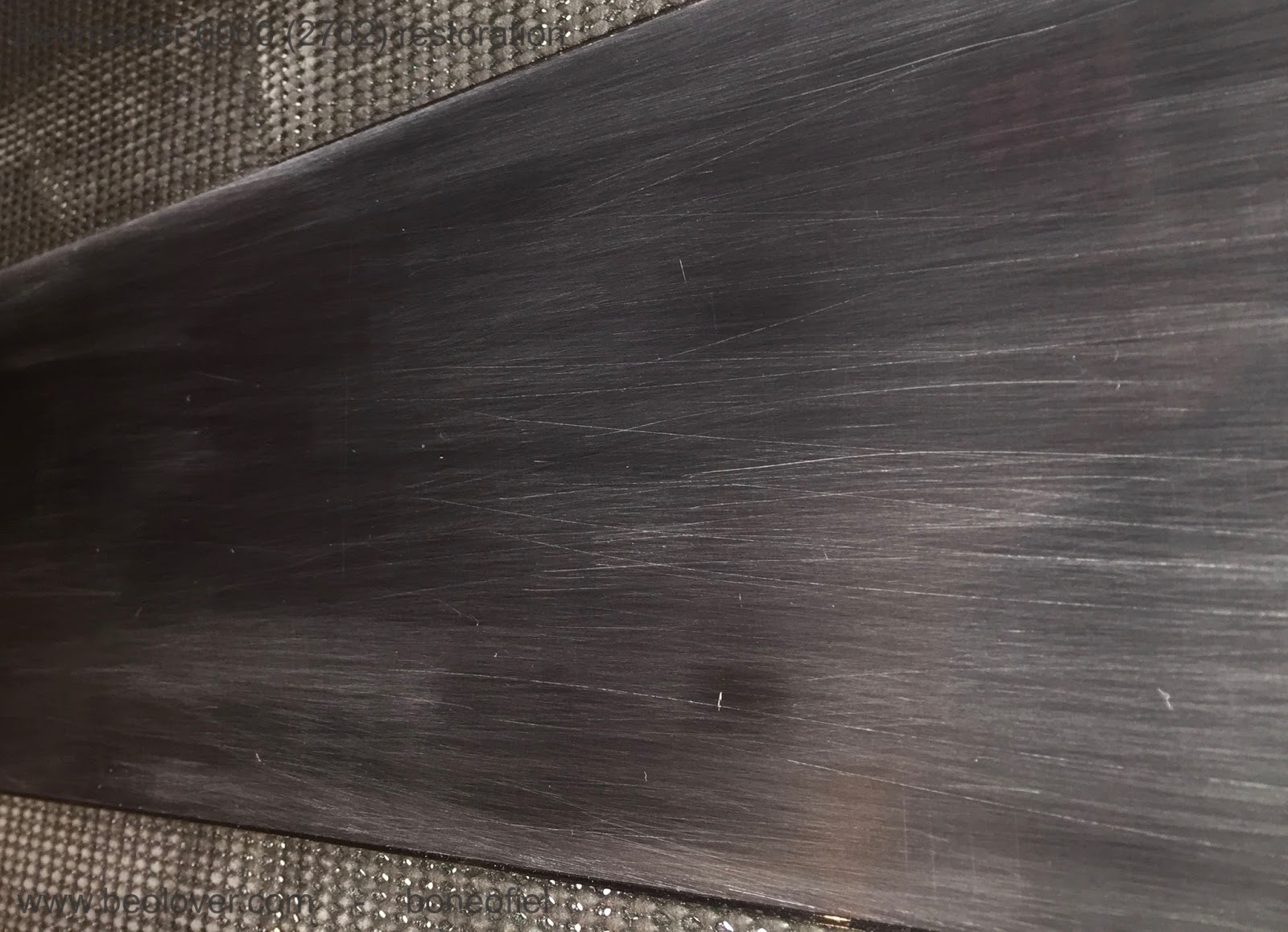
So I started off with 400 grit waterproof sand paper. That revealed the scratches even more as you can see on the picture.


There is only one good way of getting rid of these scratches: polishing, polishing, ...starting with a coarse one and working your way up to a very fine one. I used sandpaper grit 400, 600 and 800 before switching to a micro-mesh type of 1500, 1800, 2400, 3200, 4000, 6000, 8000, 12000.  Please note that "grit" size sandpapers and "mesh" type size are not the same. A standard 800 grit sandpaper correspond to about a 1500 mesh type. Conversion tables can be found on the internet. The Micro-Mesh™ brand has kits available with a whole range of sizes. Micro-Mesh™ likes to call it "a non-abrasive abrasive. It is considered a cushioned abrasive in fact.". It can be washed and reused and has a more structured crystal alignement (compared to ordinary sandpaper) that leaves a more consistent scratch pattern.

Following 2 pictures courtesy of Micro-Mesh™


A few important things to keep in mind when polishing plexiglas:

- polish in straight lines and change direction perpendicularly after each grit/mesh size
- wipe off regularly with a perfectly clean cloth (microfibres of paper towel)
- use a bit of water; it acts as a lubricant, removes dust easier and keeps the plexi cool (in case you want to use a power-tool to do the polishing)

I've done a few Beogram dust hoods, but this display panel seemed to be much more difficult. Not sure why, the material is maybe different, or it's just the fact that this is a dark red (almost black) type of plexi and easier to see scratches.

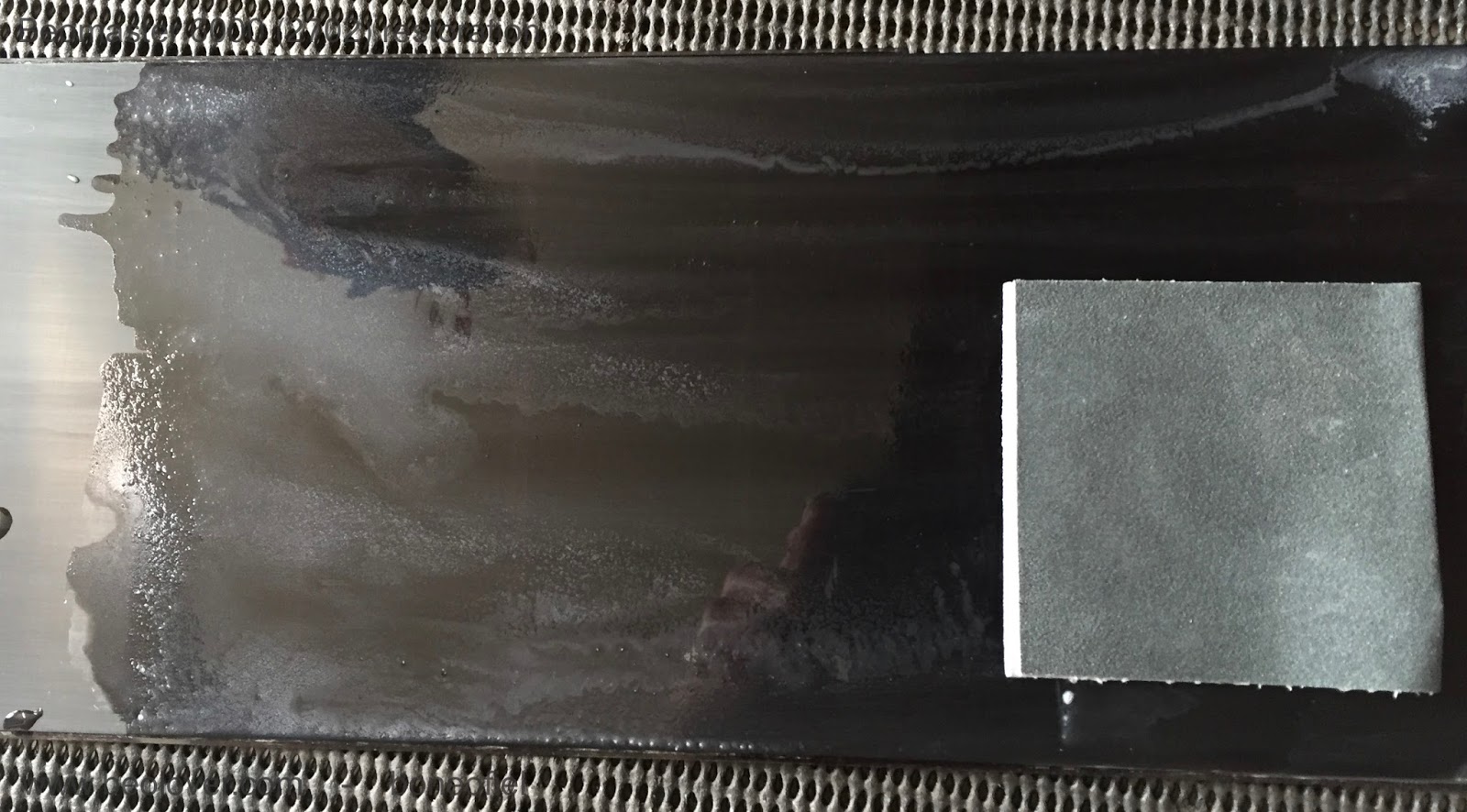
A few impressions of the different steps in the polishing process:


At 2400 mesh I got this result


And already a bit transparent, but still a long way to go.


After a few hours I finally got down to Micro-Mesh 12000. Once above 6000 you can hardly call that "sanding" anymore. It's so fine that  you have trouble seeing what the effect is.

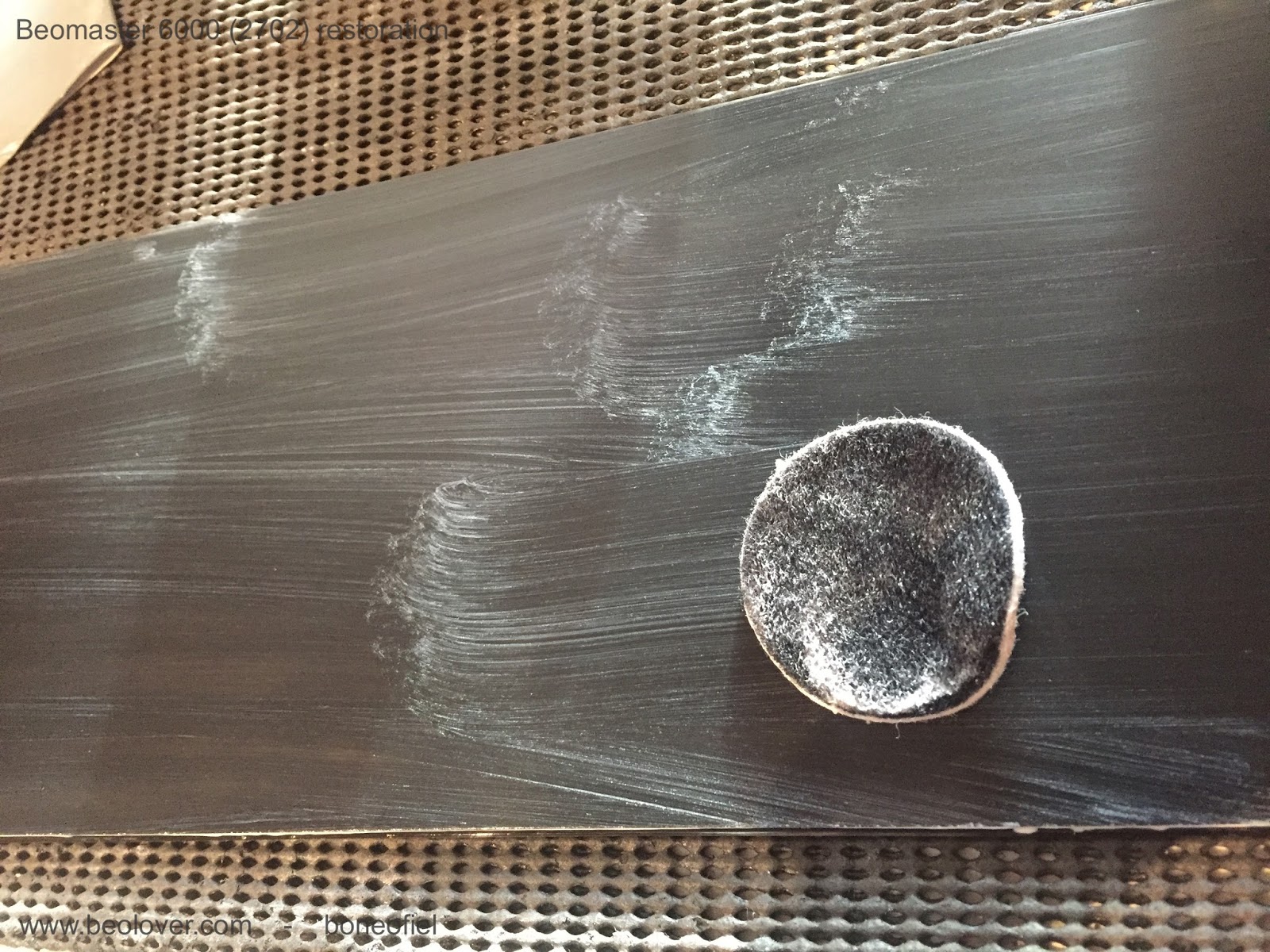
The next step is usually a fine Micro Polish liquid that is used, but I wasn't happy with the result at this point. Still to much haziness to my liking. So, I changed strategy and digged out another polishing kit that I used in the past for a car headlight fixture that also had some haziness. The kit contains 2 compounds: a abrasive (cutting) one and a polishing one.


This worked very well. You apply the compound A with a pad (you can use a small polishing machine or drilling tool if you want) for a few minutes. Then wash it off and apply compound B which is ticker and has a brownish color. I used a small pad again and added a few drops of water each time the compound was drying and starting to stick to the plexi. The result was good.


To finish off, I put some surface sealing coating on top to make it water resistant and more easy to clean in the future.


I couldn't resist taking out the restored key panel and the black anodised back frame to put them together with the display to see how it would look like once everything was assembled.


You can see the reflection of some wall pictures (my grandkids..) in the display. Time to rest. I can hardly feel my arms after all this polishing today.....